# Use On Failure Feature
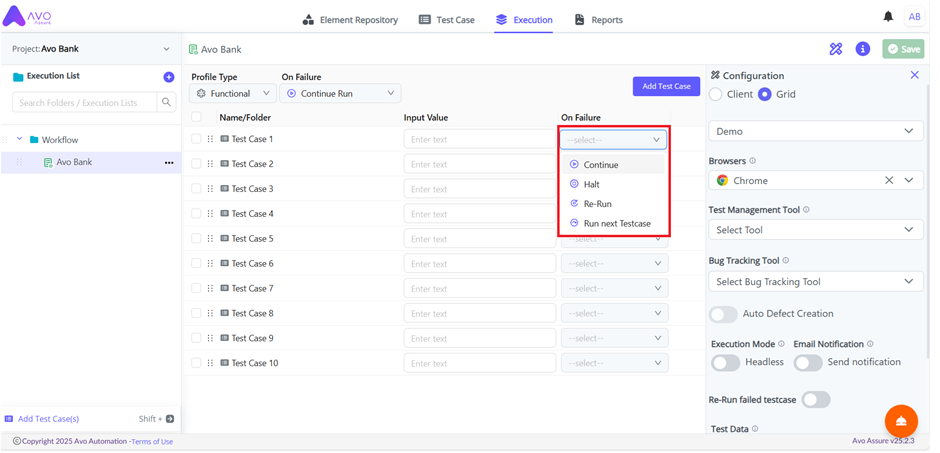
Avo Assure provides an **On Failure** feature that allows users to decide how the execution should behave when a step fails. This feature appears as a dropdown, and users can select how the system should respond to an error during execution. The available options are explained below.
#### On Failure Options:
* **Continue Run**: Continues the execution by skipping the step that encountered the error.
* **Halt Run**: Stops the execution immediately when an error occurs.
* **Re-Run**: Stops the current execution after detecting an error and restarts the execution from the beginning.
* **Run Next Test Case**: Skips the remaining steps in the current Test Case and moves to the next Test Case after an error is detected.
Steps to use the On-Failure Feature:
1. On **Execution** page, select the create **Execution List**.
{% hint style="info" %}
To learn how to create an Execution List, [click here](https://docs.avoautomation.com/working-with-the-avo-assure-platform/create-and-execute-tests-with-design-studio/working-with-execution-section/creating-execution-list).
{% endhint %}
2. From the **Test Case** window, navigate to **On Failure** dropdown next to each Testcase and select the required option based on your execution needs.
3. Select the desired failure-handling option from the dropdown menu.
## Examples of On Failure
### 1. Continue
**Scenario:** \
A login test case checks if the Username field is available. The system doesn’t show it due to a small delay.
**What happens:** \
Instead of stopping the test, Avo Assure skips the failed step and moves to the next steps like entering the password and clicking the login button.
### 2. Halt
**Scenario:** \
During login, the test tries to type in the Username field, but the field is missing, or its ID has changed.
**What happens**: \
The test stops immediately to avoid continuing with incorrect or missing data.
### 3. Rerun
**Scenario:** \
A test tries to submit a contact form, but it fails because of a slow internet connection or browser freeze.
**What happens:** \
The failed test case runs again automatically to check if it was just a temporary issue.
### 4. Run from Next Test Case
**Scenario:** \
A test tries to upload a profile picture, but the image path is wrong, or the upload button doesn’t work.
**What happens:** \
Avo Assure skips the rest of this Test case and directly moves to the next one, like updating the profile name.
{% hint style="info" %}
**Note**:
* Above examples help you to understand how each **On Failure** option functions during test execution. You can choose the appropriate option based on your requirement whether to continue the run, stop execution, rerun the Test case, or move to the next Test case.
* The following information applies only when the **Recovery Mechanism** is used in Test case.
* When **On Failure** is set to **Re-run**.
* When you select **Re-run**, the system pauses execution as soon as a test step fails. The system then executes the created recovery steps based on the defined priority (Test Case level, Sub-Folder level, or Folder level). After the recovery steps complete, the system reruns the same Test case from the beginning.
* Use this option when you want to retry the failed Test case after restoring the execution environment.
* When **On Failure** is set to **Run next Testcase**.
* When you select **Run next Testcase**, the system pauses execution when a test step fails. The system executes the created recovery steps based on priority and then skips the failed Test case. After recovery completes, the system starts execution of the next Test case in the execution list.
* Use this option when you want to ignore the failed Test case and continue execution with the remaining Test cases.
* When **On Failur*****e*** is selected for as **Continue** or **Halt**.
* When **Continue** is selected, the system continues executing the remaining test steps even if a step fails. The system does not execute recovery steps in this case.
* When **Halt** is selected, the system stops execution immediately when a step fails. The system does not execute recovery steps, and no further Test cases run.
{% endhint %}