# Creating Recovery Steps in Avo Assure

### **Steps to create Recovery Steps on Folder-Level**&#x20;

1. Navigate to **Test Case** tab &#x20;
2. **Create a folder** (if not already present)

<figure><img src="https://2174257472-files.gitbook.io/~/files/v0/b/gitbook-x-prod.appspot.com/o/spaces%2Fk8QZzXZMIJSStKAzDSTu%2Fuploads%2FDKrV1WPch8wnUzjPyFWa%2Fimage.png?alt=media&#x26;token=5b59d335-c231-4612-9340-7d85b61a9bf7" alt=""><figcaption></figcaption></figure>

3. Click **Ellipsis** (**...**) icon next to the folder name. Select **Create Recovery** option from the dropdown.

<figure><img src="https://2174257472-files.gitbook.io/~/files/v0/b/gitbook-x-prod.appspot.com/o/spaces%2Fk8QZzXZMIJSStKAzDSTu%2Fuploads%2FPFBxkTXQmOppQbRlf8Zl%2Fimage.png?alt=media&#x26;token=a8b21851-8ebc-4e94-aa79-bb3a7f1615c4" alt=""><figcaption></figcaption></figure>

4. Create new **Test Step Group** and add Test steps under the Recovery Steps section

<figure><img src="https://2174257472-files.gitbook.io/~/files/v0/b/gitbook-x-prod.appspot.com/o/spaces%2Fk8QZzXZMIJSStKAzDSTu%2Fuploads%2Fp1yUtfvhYI95TQNteSJy%2Fimage.png?alt=media&#x26;token=1b43d7ed-69ab-4a28-9706-811285e6a3b5" alt=""><figcaption></figcaption></figure>

### **Steps to create Recovery Steps on** Sub-Folder-Level

1. Click **Ellipsis** **(...)** icon next to the parent folder and select ***Create Folder** option* from the dropdown to create a subfolder (if not already present).

<figure><img src="https://2174257472-files.gitbook.io/~/files/v0/b/gitbook-x-prod.appspot.com/o/spaces%2Fk8QZzXZMIJSStKAzDSTu%2Fuploads%2FRyfp9RI65KjrxBpNOIAt%2Fimage.png?alt=media&#x26;token=fbfbf8cf-a3b5-493a-bef8-1f2b5cbb8136" alt=""><figcaption></figcaption></figure>

2. Click **Ellipsis** **(...)** icon next to the subfolder, then choose ***Create Recovery*** option from the dropdown to add recovery steps under the subfolder

<figure><img src="https://2174257472-files.gitbook.io/~/files/v0/b/gitbook-x-prod.appspot.com/o/spaces%2Fk8QZzXZMIJSStKAzDSTu%2Fuploads%2FU6tQSRxaun6p3maY0chL%2Fimage.png?alt=media&#x26;token=67dec97b-283b-4b53-a597-7357cf5cbede" alt=""><figcaption></figcaption></figure>

3. Choose **Create Recovery** from the menu and add the necessary **Test Step Group** and **Recovery Steps**.

<figure><img src="https://2174257472-files.gitbook.io/~/files/v0/b/gitbook-x-prod.appspot.com/o/spaces%2Fk8QZzXZMIJSStKAzDSTu%2Fuploads%2FknUN9jSVTE0rIRScaBHT%2Fimage.png?alt=media&#x26;token=0d4f7dd0-d028-43bc-beee-6c5eed7dc2c3" alt=""><figcaption></figcaption></figure>

### **Steps to create Recovery Steps on Test Case**-Level

1. Click **Ellipsis (...)** icon next to the Fund Transfer Subfolder and select ***Create Test case*** from the dropdown to create a Test case (if not already present).

<figure><img src="https://2174257472-files.gitbook.io/~/files/v0/b/gitbook-x-prod.appspot.com/o/spaces%2Fk8QZzXZMIJSStKAzDSTu%2Fuploads%2FaE5umwP1hzCaC8bsN7DL%2Fimage.png?alt=media&#x26;token=82e545e8-8422-48c3-84de-3e7694903ca2" alt=""><figcaption></figcaption></figure>

2. Click **Ellipsis (...)** icon next to the Test Case, then choose ***Create Recovery*** from the dropdown to add recovery steps under the Test Case

<figure><img src="https://2174257472-files.gitbook.io/~/files/v0/b/gitbook-x-prod.appspot.com/o/spaces%2Fk8QZzXZMIJSStKAzDSTu%2Fuploads%2FVU5NRziByKQkKEalpsCM%2Fimage.png?alt=media&#x26;token=8c9e83f6-6f07-446d-84ce-6b5ce1fae8e2" alt=""><figcaption></figcaption></figure>

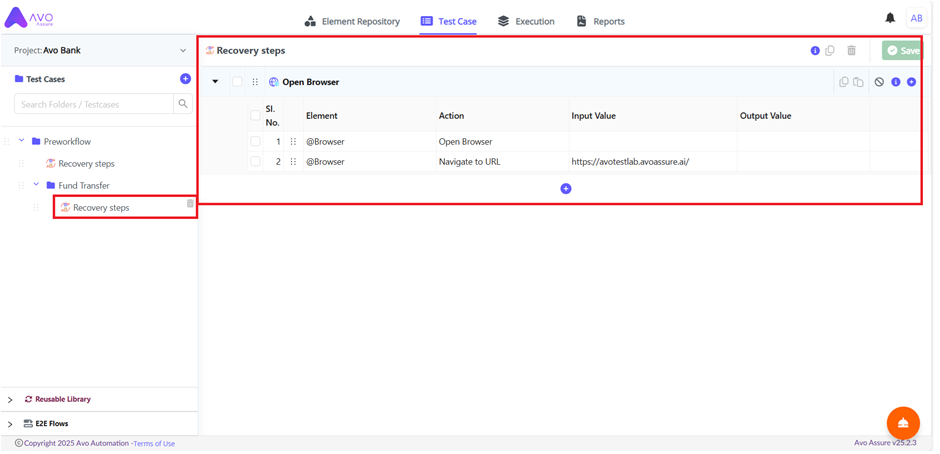
3. Add Choose **Create Recovery** from the menu and add the necessary **Test Step Group** and **Recovery Steps**.

<figure><img src="https://2174257472-files.gitbook.io/~/files/v0/b/gitbook-x-prod.appspot.com/o/spaces%2Fk8QZzXZMIJSStKAzDSTu%2Fuploads%2FXjATwpgmzdq3msy8ZgvS%2Fimage.png?alt=media&#x26;token=c55ac21d-b88e-4a8e-bb23-382336aee511" alt=""><figcaption></figcaption></figure>