# Expand and collapse Test Case

There are two ways to use this feature:

1. Folder Level
2. From View Report Option

### Folder

Below are steps to expand and collapse on folder level

1. Click on **" >"** icon to expand the folder section.&#x20;

<figure><img src="https://2174257472-files.gitbook.io/~/files/v0/b/gitbook-x-prod.appspot.com/o/spaces%2Fk8QZzXZMIJSStKAzDSTu%2Fuploads%2FKf4qNTzThHfrMe04hPE6%2Fimage.png?alt=media&#x26;token=a3aa16cf-f749-4887-a671-229ebabf8396" alt="" width="248"><figcaption></figcaption></figure>

2. All the sub- folders will appear. Use the same icon to collapse this section

<figure><img src="https://2174257472-files.gitbook.io/~/files/v0/b/gitbook-x-prod.appspot.com/o/spaces%2Fk8QZzXZMIJSStKAzDSTu%2Fuploads%2FAGI8rYXesYWqAMrip2zS%2Fimage.png?alt=media&#x26;token=2b49bb62-96f1-492c-9dce-89c0527498cd" alt="" width="269"><figcaption></figcaption></figure>

### From View Report Option

* Result Summary
* Test Step Details

### Result Summary

1. Navigate to Report Section and Select your Testcase folder
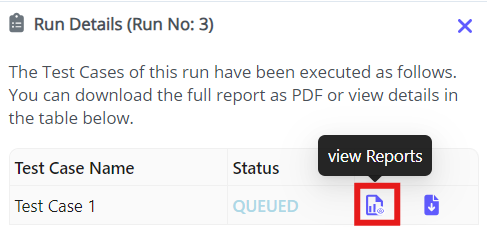
2. Click **Testcase Details.** This will open the Run Details pop-up

<figure><img src="https://2174257472-files.gitbook.io/~/files/v0/b/gitbook-x-prod.appspot.com/o/spaces%2Fk8QZzXZMIJSStKAzDSTu%2Fuploads%2FSAsJVaxzkt29C3l9hwl2%2Fimage.png?alt=media&#x26;token=f760f14f-2f04-4443-9e9c-de7c81483f0c" alt="" width="563"><figcaption></figcaption></figure>

2. Select **View Report** on this pop-up.

<figure><img src="https://2174257472-files.gitbook.io/~/files/v0/b/gitbook-x-prod.appspot.com/o/spaces%2Fk8QZzXZMIJSStKAzDSTu%2Fuploads%2FWpFWGzMtjWYkvLUnq317%2Fimage.png?alt=media&#x26;token=683bd7d7-e0d8-4dde-8956-960e1175abf9" alt="" width="365"><figcaption></figcaption></figure>

3. In the Result Summary page, click on **arrow icon** to expand the summary section and view test case details.

<figure><img src="https://2174257472-files.gitbook.io/~/files/v0/b/gitbook-x-prod.appspot.com/o/spaces%2Fk8QZzXZMIJSStKAzDSTu%2Fuploads%2FiVJgjfJJXvfhRipmJ2x0%2Fimage.png?alt=media&#x26;token=0e4554b6-2225-4e24-a1fc-5952618277ef" alt="" width="194"><figcaption></figcaption></figure>

### Test Step Details

1. On the Results Summary page, click the **arrow** located under the Step Detail section.

<figure><img src="https://2174257472-files.gitbook.io/~/files/v0/b/gitbook-x-prod.appspot.com/o/spaces%2Fk8QZzXZMIJSStKAzDSTu%2Fuploads%2FKytPbhfy9zmd6Uc2SyjA%2Fimage.png?alt=media&#x26;token=7280bccd-374b-4563-b798-e2917e444d47" alt=""><figcaption></figcaption></figure>

2. This will expand the details of the test step and provide its status.

<figure><img src="https://2174257472-files.gitbook.io/~/files/v0/b/gitbook-x-prod.appspot.com/o/spaces%2Fk8QZzXZMIJSStKAzDSTu%2Fuploads%2F5BFWNYOeHcCQuW6WA26O%2Fimage.png?alt=media&#x26;token=0235a0c3-cedc-429d-a9e9-2df632eb926b" alt=""><figcaption></figcaption></figure>