# Downloading Report

There are three detailed report download options available in Avo Assure – Json, PDF and PDF with screenshot formats.

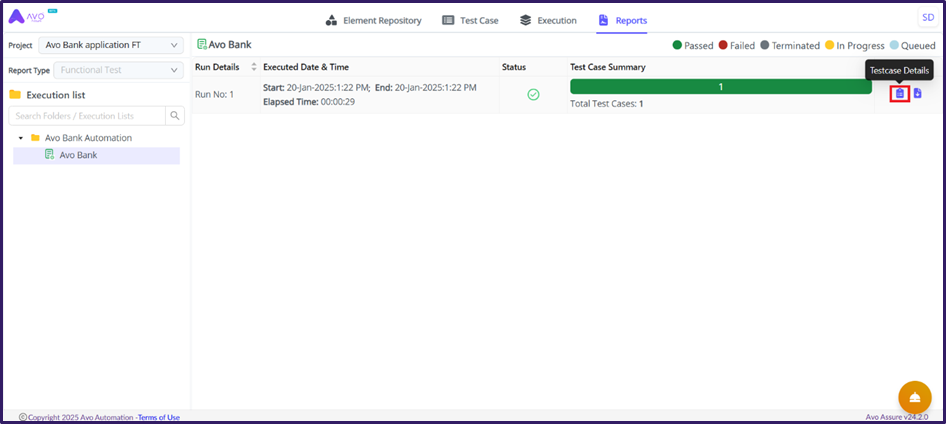
1. Navigate back to the Report tab and click Testcase Details icon, to bring up Run details popup window in top right corner of Reports tab.

<figure><img src="https://2174257472-files.gitbook.io/~/files/v0/b/gitbook-x-prod.appspot.com/o/spaces%2Fk8QZzXZMIJSStKAzDSTu%2Fuploads%2FpKZeRNZZIQJPON0HraW8%2Fimage.png?alt=media&#x26;token=e095349d-a3a9-4a30-80c1-7aac4f15ee31" alt=""><figcaption></figcaption></figure>

2. Click Download Testcase Details icon, from Run Details pop up window

<figure><img src="https://2174257472-files.gitbook.io/~/files/v0/b/gitbook-x-prod.appspot.com/o/spaces%2Fk8QZzXZMIJSStKAzDSTu%2Fuploads%2F6O26TXGbRvBzS3thKdcJ%2Fimage.png?alt=media&#x26;token=4b66fcf9-ae7e-4f83-b955-234313e94edd" alt=""><figcaption></figcaption></figure>

2. Select required format from the pop to download the reports

<figure><img src="https://2174257472-files.gitbook.io/~/files/v0/b/gitbook-x-prod.appspot.com/o/spaces%2Fk8QZzXZMIJSStKAzDSTu%2Fuploads%2FOBuj2fL1G2UCQJLS6ykG%2Fimage.png?alt=media&#x26;token=fd11ba16-162e-442e-bb64-52ee1e9abb04" alt=""><figcaption></figcaption></figure>

{% hint style="warning" %}
**Note:**&#x20;

*For Test cases, the reports can be downloaded in JSON, PDF and PDF with screenshots formats.*

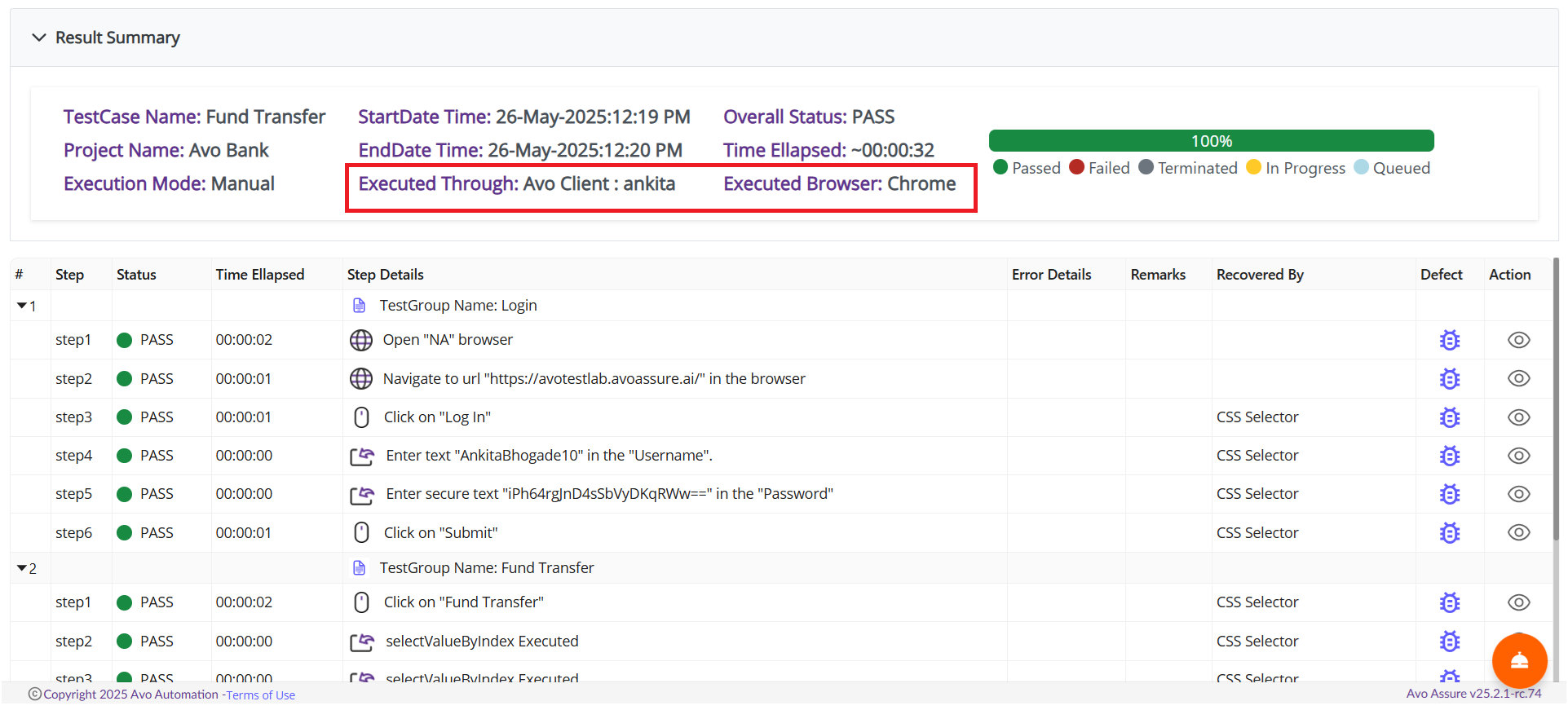
*The browser/client name is now visible in all report formats—HTML, PDF, detailed PDF, and email attachments.*
{% endhint %}
<figure><img src="https://2174257472-files.gitbook.io/~/files/v0/b/gitbook-x-prod.appspot.com/o/spaces%2Fk8QZzXZMIJSStKAzDSTu%2Fuploads%2FEY3IdR73sGhwkv8n0VKA%2Fimage.png?alt=media&#x26;token=86193c90-5c3b-463a-a3b1-0ffb92e5aa65" alt=""><figcaption></figcaption></figure>