# Managing Test Execution and Client Status
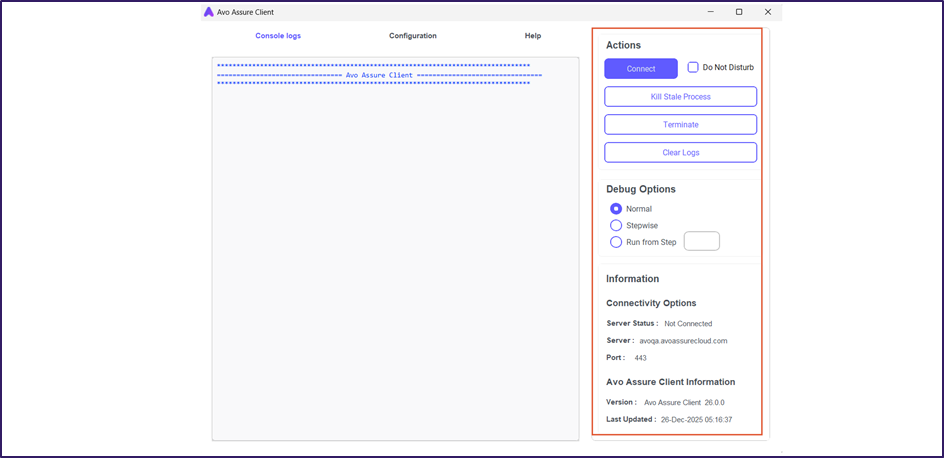
This controls the test execution, debug errors, and view critical client information. You can start, pause, or stop test scenarios, inspect specific steps to troubleshoot issues, and monitor connection status, server details, and the installed client version.
The following options contain the client’s controls and information:
* [**Actions**](#actions)
* [**Debug Options**](#debug-options)
* [**Information**](#information)
## Actions
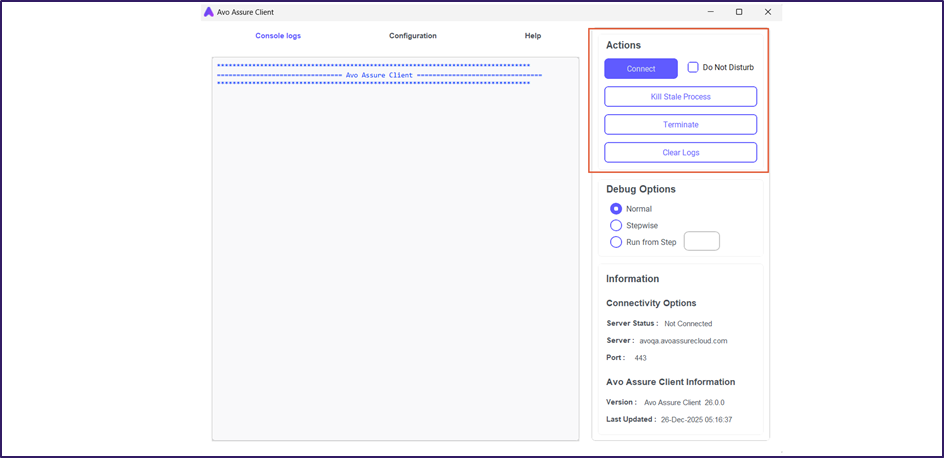
Actions provide direct control over the test execution lifecycle. You can start, pause, or stop test scenarios directly from the client interface.
The Actions section enables you to perform the following operations:
* **Connect**\
Establishes a connection between the Avo Assure Client and the Avo Assure Server. This connection is required before test execution begins.
* **Kill Stale Process**\
Stops the previous execution and closes if any automation browsers still running in the background.
* **Terminate**\
Stops the currently running test execution.
* **Clear Logs**\
Removes the logs displayed in the console.
* **Do Not Disturb**\
Prevents interruptions during execution. When it enabled, the system blocks notifications and user interactions that can interrupt the ongoing process.
## Debug Options
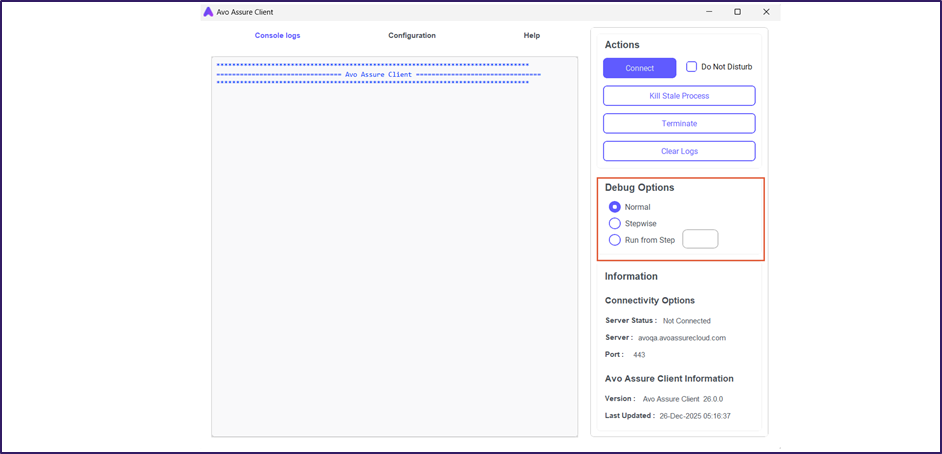
Debug Options help you troubleshoot errors during a test run. You can use these options to inspect specific test steps and identify the exact cause of a failure.
The Debug section enables you to perform the following operations:
* **Normal** \
Analyzes all test steps from beginning to end and displays a final combined execution result.
* **Stepwise**\
It debugs the designed Test steps from the start to end one by one to validate them individually.
* **Run from Step**\
It debugs the Test steps from the provided Test step number mentioned in the text box, like 6-10 or 1-7.
## Information
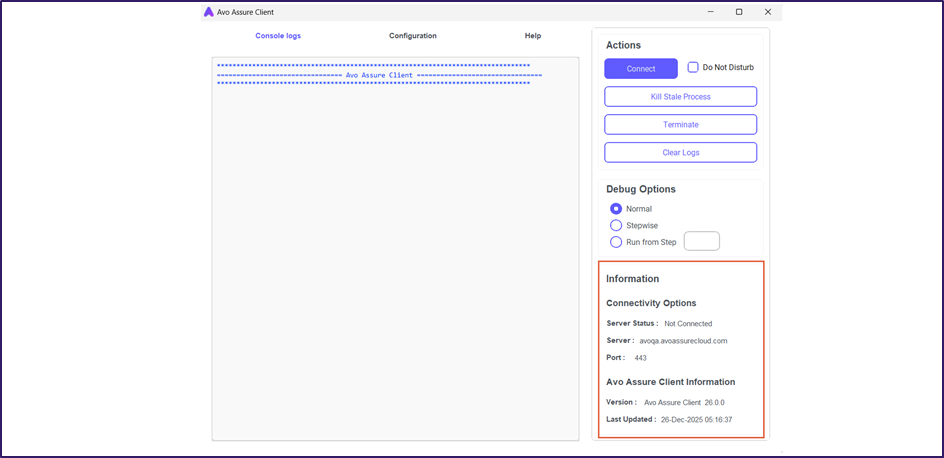
Information displays important details about the client’s connection status and software version.
The Information contains the following options:
* **Connectivity Options**\
This section displays the current network connection details. You can use it to verify the **Server Status** (Connected or Not Connected), the **Server address** (URL), and the communication **Port** number currently in use.
* **Avo Assure Client Information**\
This section displays the installed software details. You can view the **Version** number and the **Last Updated** timestamp to confirm that you are running the correct application build.