> For the complete documentation index, see [llms.txt](https://docs.avoautomation.com/llms.txt). Markdown versions of documentation pages are available by appending `.md` to page URLs; this page is available as [Markdown](https://docs.avoautomation.com/avo-assure/utilities/authorization.md).
# Authorization
The **Authorization** feature in Avo Assure generates a token used to authenticate API requests, such as creating or validating verticals, managing users and projects, and handling SSO role mappings. This token acts as a temporary digital credential and remains valid only for a specific duration (for example, 1 day or 1 week).
## Key Capabilities
The Authorization Token Enables You To:
* **Secure API Access**: Prevent unauthorized users from performing sensitive actions.
* **Enable Access**: Allow to perform tasks directly via API (such as creating users or projects).
* **Manage Session Duration**: Control how long external access remains valid through configurable expiry settings.
## This Article Contains the Following Module
[Prerequisites](#prerequisites)\
Prerequisites for Authorization in Avo Assure.
[Generating an Authorization Token](#generating-authorization-token)\
Steps to generate an Authorization Token in Avo Assure.
[Example: Creating a Vertical in Avo Assure](#example-creating-a-vertical-in-avo-assure)\
Steps to use the generated token to create a new Vertical in Avo Assure.
## Prerequisites
The following requirements must be fulfilled before you generate an authorization token:
* **Active Account**: You must have a valid and active Avo Assure user account.
* **Project Creation**: You must have an active project created in Avo Assure to work on APIs automation.
* **Valid APIs**: You should have the valid Avo Assure APIs.
## Generating Authorization Token
To generate a new API token, perform the following actions:
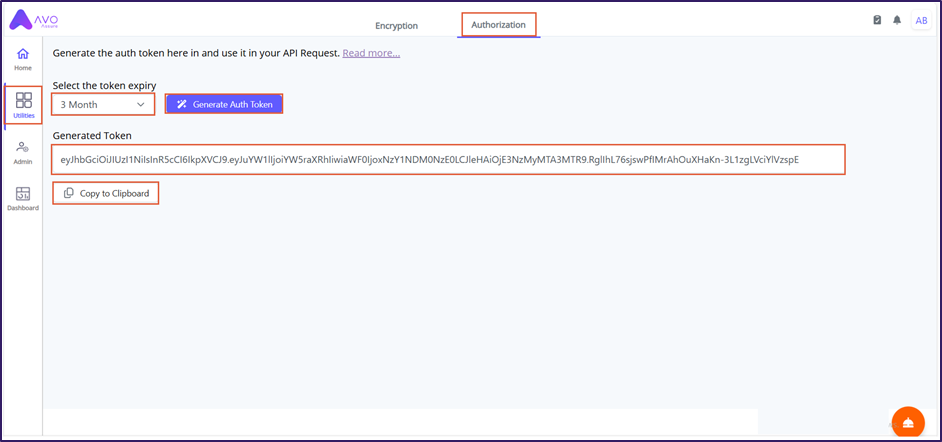
1. On the **Home** page, select the **Utilities**.
2. Select the **Authorization** tab to generate the **Auth Token**.
3. Locate the **Select the token expiry** dropdown and choose the desired expiration (such as, 1 Day or 1 Week).
4. Select the **Generate Auth Token** to create a new alphanumeric token, which appears in the Generated Token field.
5. Select the **Copy to Clipboard** to copy the token for use in your API client.
### Example: Creating a Vertical in Avo Assure
To apply the generated token in an API client, perform the following actions:
1. On the **Home** page, select the **Design Studio** button. The **Element Repository** page opens.
2. Create a new folder by clicking on the **Create Folder** (**+**) icon and then create a repository by selecting **APIs** as the application type.
{% hint style="info" %}
To learn more about **Creating a folder** and **Repository** for API, [click here](/avo-assure/avo-assure-supported-technologies-for-automation/api-automation/creating-apis-in-element-repository.md).
{% endhint %}
3. Select **POST** as the request method from the **Select** dropdown.
4. Enter the **Avo Assure APIs URL** in the **Enter URL** box.
* **URL**:
5. Select the **Body** and **Header** tab and enter the following details:
Body
1. Enter the body details in the **Body** tab.
Header
1. Enter the header details in the **Header** tab.
6. Select the **Authorization** tab and select the **Bearer Token** from the **TYPE** dropdown.
7. Paste the generated auth token into the Token field.
{% hint style="info" %}
To learn more about **Generating Authorization Token**, [click here](#generating-authorization-token).
{% endhint %}
8. Select the **Save** and **Send** button to save the request details and execute the API.
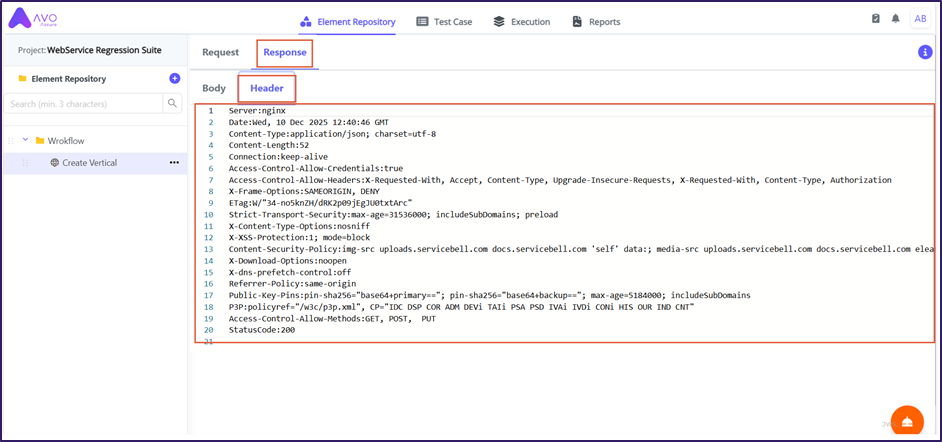
9. Select **Response** tab to view the **Header** and **Body** response from the system.
Body
The **Body** tab displays the response returned by the server. The content is displayed in JSON format.
Header
The **Header** tab displays the **HTTP status code**, **Server**, **response time**, **Content-Type**, and **Length**.
{% hint style="info" %}
To learn more on **APIs Automation**, [click here](/avo-assure/avo-assure-supported-technologies-for-automation/api-automation.md).
{% endhint %}
---
# Agent Instructions
This documentation is published with GitBook. GitBook is the documentation platform designed so that both humans and AI agents can read, navigate, and reason over technical content effectively. Learn more at gitbook.com.
## Querying This Documentation
If you need additional information that is not directly available in this page, you can query the documentation dynamically by asking a question.
Perform an HTTP GET request on the current page URL with the `ask` query parameter, and the optional `goal` query parameter:
```
GET https://docs.avoautomation.com/avo-assure/utilities/authorization.md?ask=&goal=
```
`ask` is the immediate question: it should be specific, self-contained, and written in natural language.
`goal` is optional and describes the broader end goal you are ultimately trying to accomplish on behalf of the user. GitBook uses it to tailor the answer towards what is most useful for that goal.
The response will contain a direct answer to the question and relevant excerpts and sources from the documentation.
Use this mechanism when the answer is not explicitly present in the current page, you need clarification or additional context, or you want to retrieve related documentation sections.