> For the complete documentation index, see [llms.txt](https://docs.avoautomation.com/llms.txt). Markdown versions of documentation pages are available by appending `.md` to page URLs; this page is available as [Markdown](https://docs.avoautomation.com/avo-assure/integrations-in-avo-assure/devops-integration/cloud-execution/ci-cd-docker/trigger-execution-list.md).
# Trigger Execution List
#### Step-by-step process to trigger Avo Assure Client mage on Cloud infrastructure:
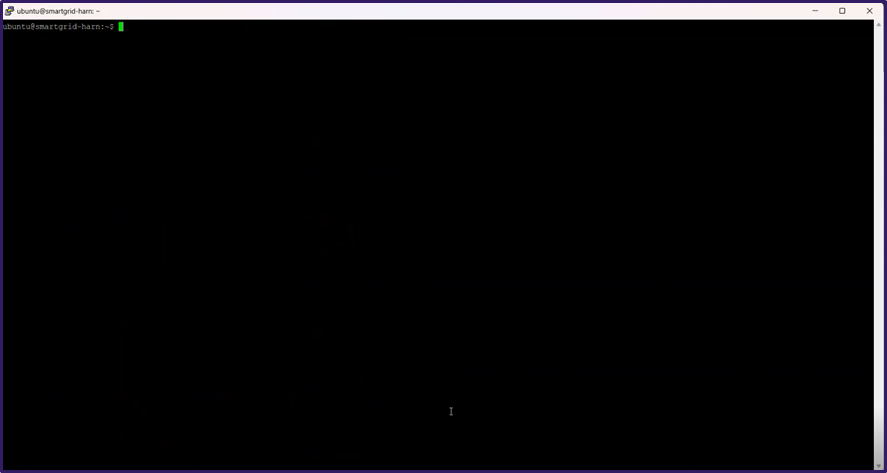
1. Open the **Kubernetes Clusters infrastructure** in system.
{% hint style="info" %}
**Note*****:*** Users can trigger the execution list on any available infrastructure using the ICE image copied from the DevOps window in Avo Assure. This ICE image can be run across different infrastructures through Docker.
{% endhint %}
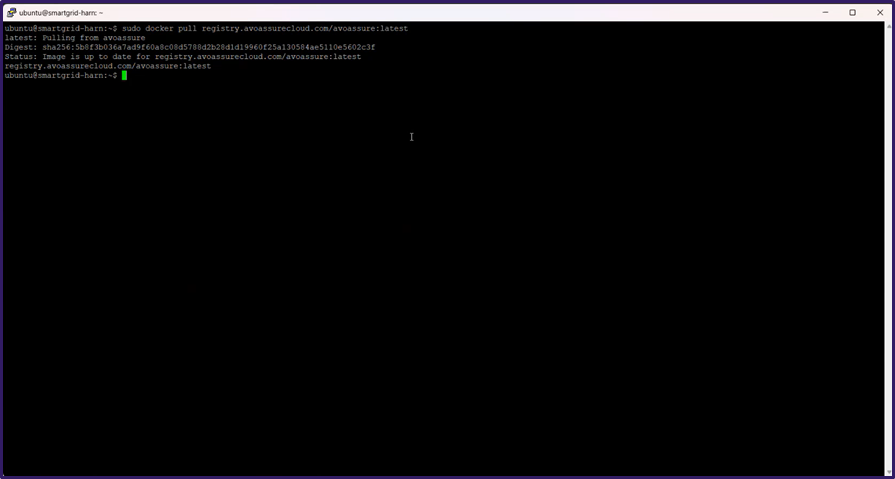
2. Paste the copied code snippet from the DevOps window where the ICE image was copied and **run** it.
{% hint style="info" %}
**Note:** After running it, user can see the Avo Assure Client image, was configure to the Kubernetes Clusters infrastructure.
{% endhint %}
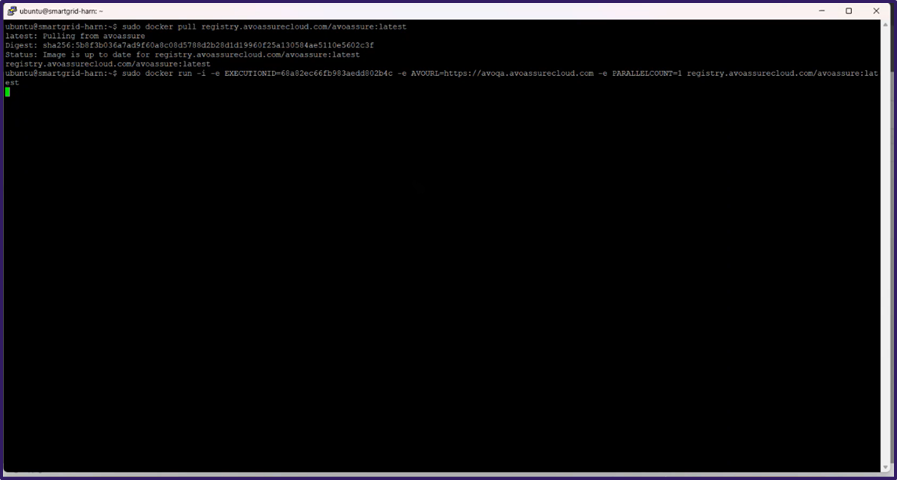
3. Paste the second copied **code snippet** from the DevOps window, which contains the Execution list details and **run** it.
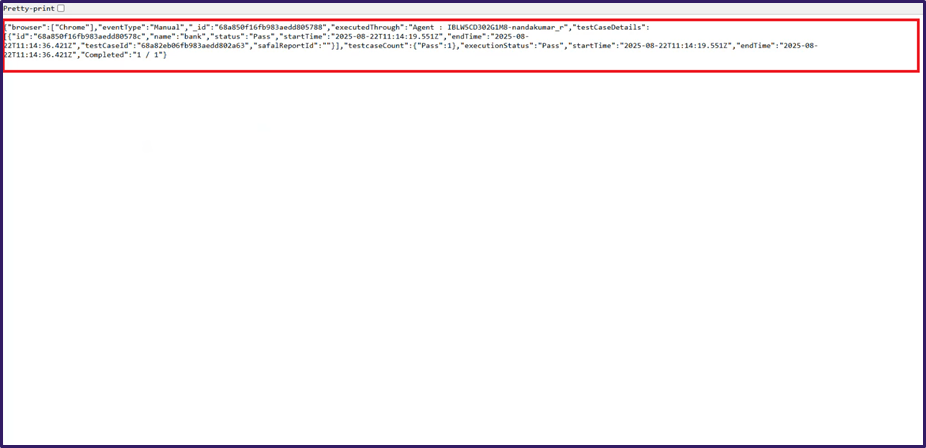
4. Once triggered, the execution starts on the Kubernetes Cluster infrastructure, and two links are displayed in the console:
**A. reportLink**
**B. runningStatusLink**
5. Steps after clicking **reportLink** and **runningStatusLink:**
{% tabs %}
{% tab title="A. reportLink" %}
#### Once after clicking reportLink, then it will navigate to the Avo Assure Login page
1. Provide **Username** and **Password** in their respective filed.
2. Click **login** button, it will directly navigate to the **Report tab** in Avo Assure.
{% hint style="info" %}
**Note:** Select the recently trigged Execution list.
{% endhint %}
3. In the right pane, click **Test Case Details** button. **Run Details** pop up window appears.
4. Select **View Report** icon to navigate to **Result Summary** window.
5. Expand **Test Step Group** and see the **Execution** result.
{% endtab %}
{% tab title="B. runningStatusLink" %}
1. After clicking the **runningStatusLink**, it opens a UI that displays the live execution status. (e.g., InProgress, Queued and Completed)
{% endtab %}
{% endtabs %}
---
# Agent Instructions
This documentation is published with GitBook. GitBook is the documentation platform designed so that both humans and AI agents can read, navigate, and reason over technical content effectively. Learn more at gitbook.com.
## Querying This Documentation
If you need additional information that is not directly available in this page, you can query the documentation dynamically by asking a question.
Perform an HTTP GET request on the current page URL with the `ask` query parameter, and the optional `goal` query parameter:
```
GET https://docs.avoautomation.com/avo-assure/integrations-in-avo-assure/devops-integration/cloud-execution/ci-cd-docker/trigger-execution-list.md?ask=&goal=
```
`ask` is the immediate question: it should be specific, self-contained, and written in natural language.
`goal` is optional and describes the broader end goal you are ultimately trying to accomplish on behalf of the user. GitBook uses it to tailor the answer towards what is most useful for that goal.
The response will contain a direct answer to the question and relevant excerpts and sources from the documentation.
Use this mechanism when the answer is not explicitly present in the current page, you need clarification or additional context, or you want to retrieve related documentation sections.