> For the complete documentation index, see [llms.txt](https://docs.avoautomation.com/llms.txt). Markdown versions of documentation pages are available by appending `.md` to page URLs; this page is available as [Markdown](https://docs.avoautomation.com/avo-assure/integrations-in-avo-assure/cloud-test/browser-stack/integrating-and-executing-test-case-with-browser-stack.md).
# Integrating & Executing Test Case with Browser Stack
There are two methods to execute Test Case on Browser Stack
A) [Normal Execution](#a-normal-execution-on-browser-stack)
B) [Parallel Execution](#b-parallel-execution-on-browser-stack)
### **A) Normal Execution on Browser Stack**
Normal execution in browser stack allows users to execute the Test Cases only on one device.\
\
Step-by-step process for normal execution in Browser Stack:
1. Select the **Project** to be integrated from the Projects section of the landing Page.
2. Select **Design Studio**.
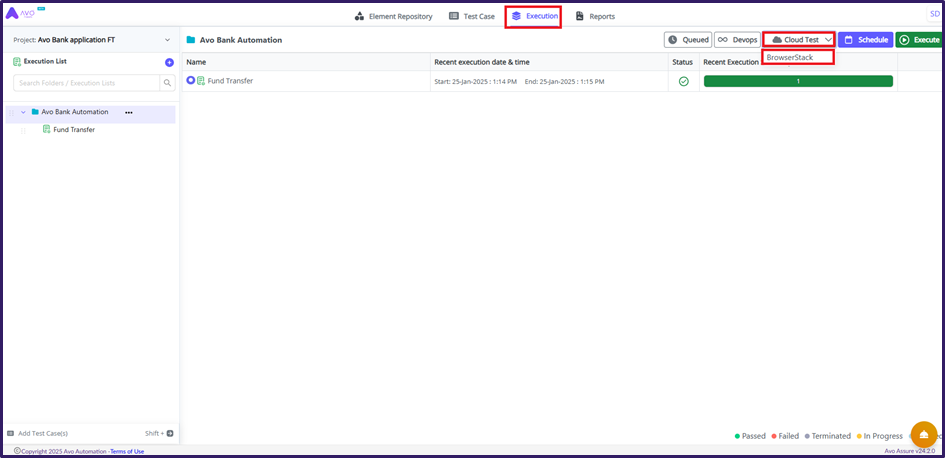
3. Navigate to **Execution** tab and click **Cloud Test** button present in top right pane of Execution window.
4. Select **Browser Stack** from Cloud Test dropdown to bring browser stack integration login popup.
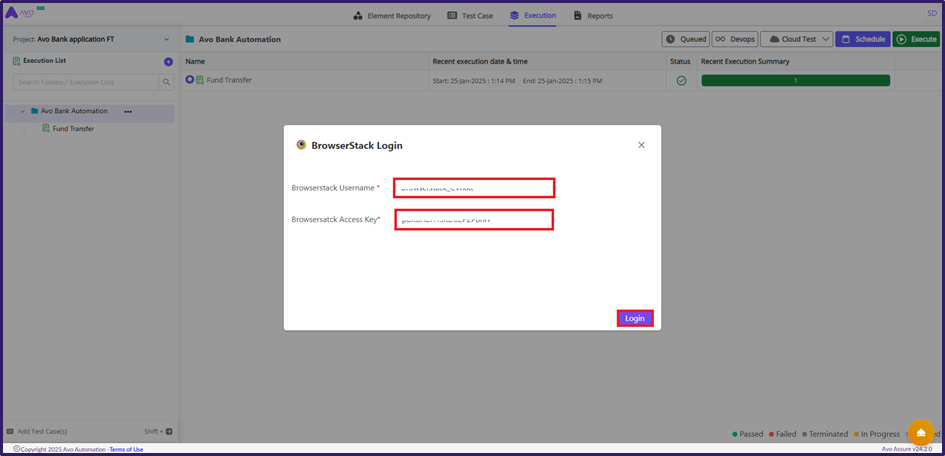
5. Fill all the mandatory details such as:\
\
**BrowserStack Username**: Enter BrowserStack username associated with the account\
**BrowserStack Access key**: Enter Access key used to authenticate user's BrowserStack account
6. Click **Login** button to navigate to BrowserStack Integration window
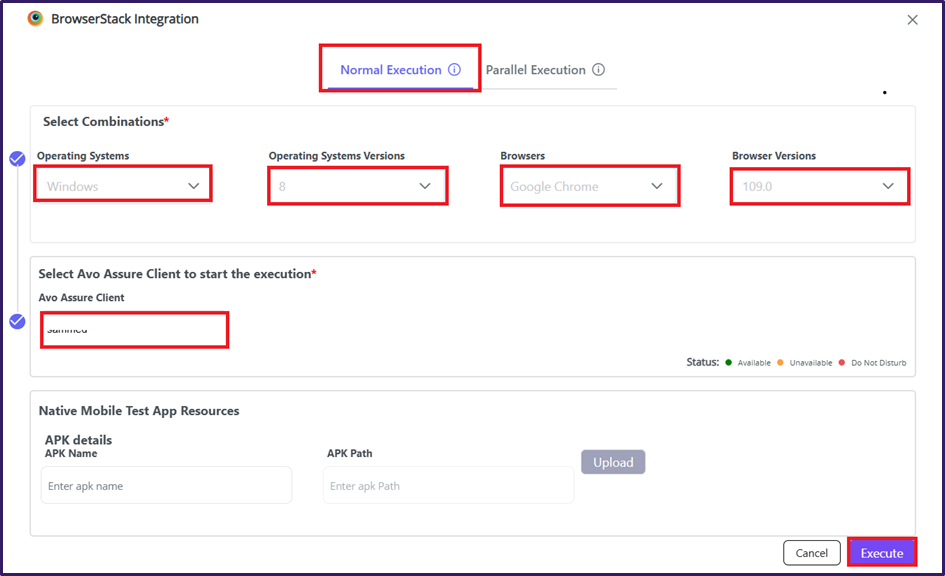
7. Choose **Normal Execution** tab form BrowserStack Integration dialog box.
8. Select the **required OS**, **OS version**, required **browser** and **browser version** from their respective BrowserStack Integration dropdownn
9. Select **Client** to start the execution on the selected Avo Assure client, then click **Execute** button
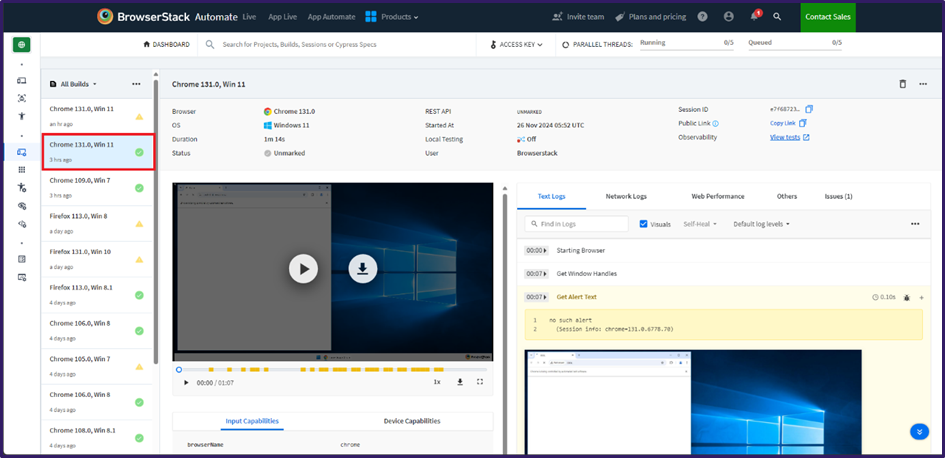
10. Navigate to the BrowserStack home screen.
Live test case execution and test results can be viewed on BrowserStack.
After completing the Execution, Test Case execution video would be available to view and analyse.
### **B) Parallel Execution on Browser Stack**
Parallel execution in browser stack allows users to execute the Test Cases in multiple devices and browsers.
Step-by-step process for parallel execution in Browser Stack:
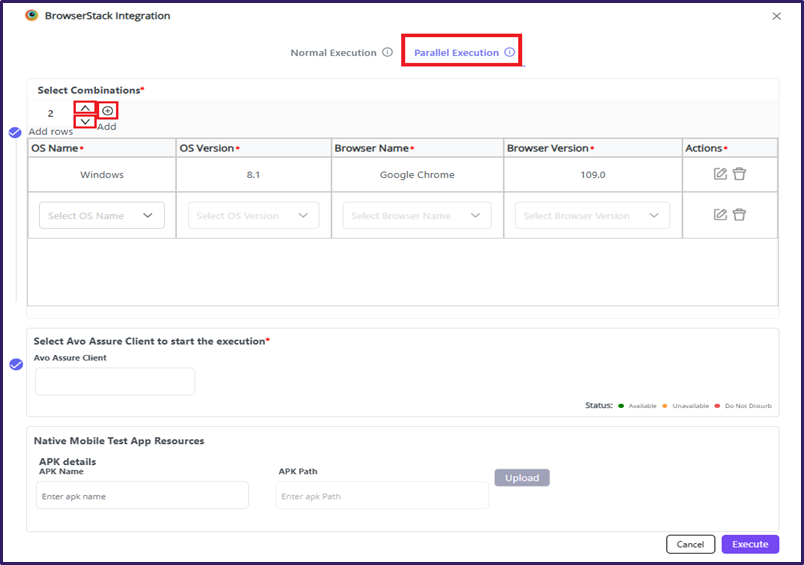
1\. Navigate to Parallel execution tab from the BrowserStack Integration dialog box
2\. Select the required number of combinations to execute selected number of executions simultaneously.
{% hint style="info" %}
**Note:** These arrows  are used to increase & decrease the combinations of OS & Browsers.
{% endhint %}
3\. Click Add button, after the selecting required numbers of combination of OS, Browsers.
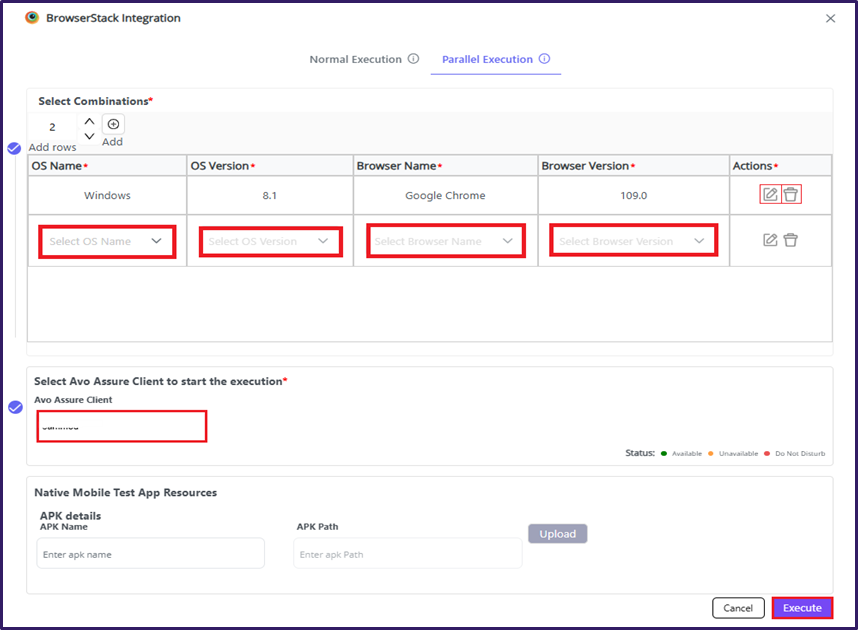
4. Select OS, OS version, required browser and browser version from their respective BrowserStack Integration dropdowns.
{% hint style="info" %}
**Note:** Use Edit icon, to modify required field like OS, OS version, required browser, or browser version
Use **Delete** icon, to delete unrequired row
{% endhint %}
5. Select **Avo Assure Client** to start the execution on that Client
6. Click **Execute** button to start the execution
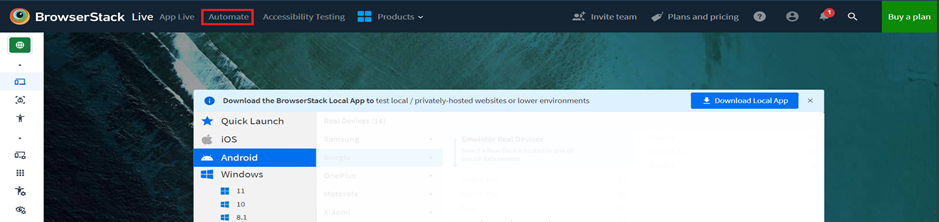
7. Navigate to the BrowserStack home screen.
8. Click **Automate** button, present in top left pane of the BrowserStack home page screen.
*Live Test Case execution can be viewed in the BrowserStack Test results*
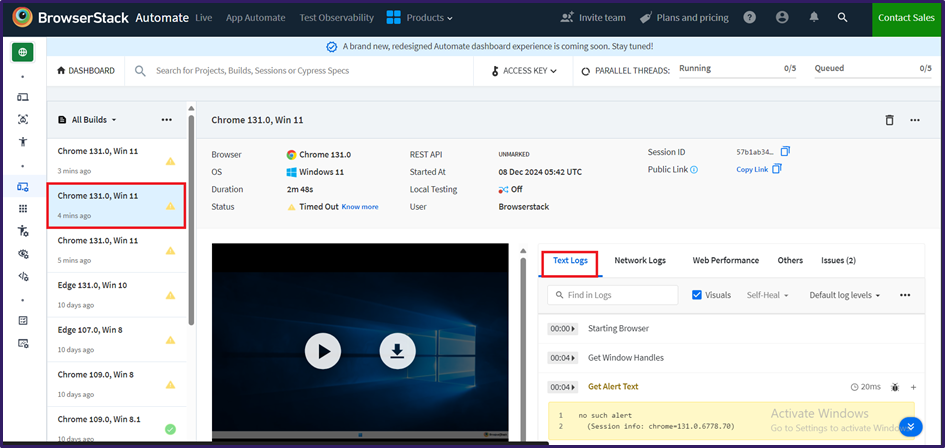
9. Once the execution is complete, the Test Case execution video will be available for review.
10\. Click **Text Logs** button, present in center of the BrowserStack Automate screen window.\
To view the logs on the BrowserStack screen
---
# Agent Instructions
This documentation is published with GitBook. GitBook is the documentation platform designed so that both humans and AI agents can read, navigate, and reason over technical content effectively. Learn more at gitbook.com.
## Querying This Documentation
If you need additional information that is not directly available in this page, you can query the documentation dynamically by asking a question.
Perform an HTTP GET request on the current page URL with the `ask` query parameter, and the optional `goal` query parameter:
```
GET https://docs.avoautomation.com/avo-assure/integrations-in-avo-assure/cloud-test/browser-stack/integrating-and-executing-test-case-with-browser-stack.md?ask=&goal=
```
`ask` is the immediate question: it should be specific, self-contained, and written in natural language.
`goal` is optional and describes the broader end goal you are ultimately trying to accomplish on behalf of the user. GitBook uses it to tailor the answer towards what is most useful for that goal.
The response will contain a direct answer to the question and relevant excerpts and sources from the documentation.
Use this mechanism when the answer is not explicitly present in the current page, you need clarification or additional context, or you want to retrieve related documentation sections.