# Unassigned Artifacts
When a user is removed from any project, their artifacts such as Test cases, Element Repositories, and Executions remain assigned to them. Administrators can assign or bulk assign these artifacts to existing users from the Admin section.
{% hint style="info" %}
**Note**: To assign these artifacts, you must have the **Admin** role or the **Quality Manager with Admin** as a secondary role.
{% endhint %}
## Assigning Unassigned Artifacts
You can assign unassigned artifacts using one of the following methods:
Single Assignment
Single Assignment allows you to assign artifacts individually. This gives you control to review and assign each artifact one at a time.
To assign a single artifact, perform the following actions:
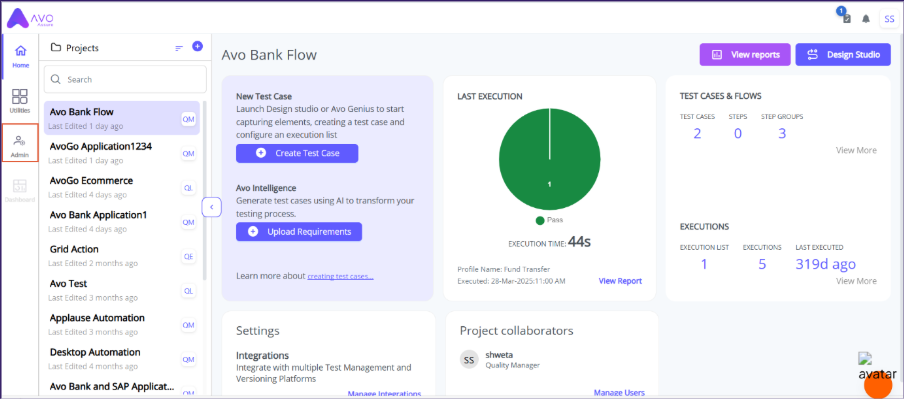
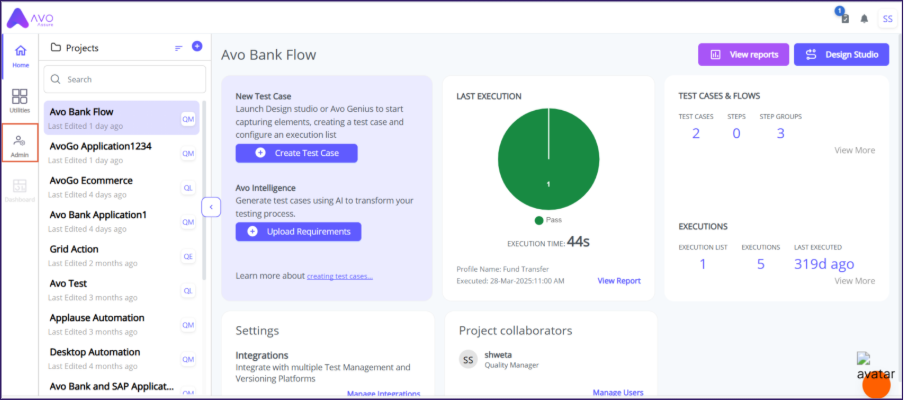
1. On **Home** page, select **Admin** tab.
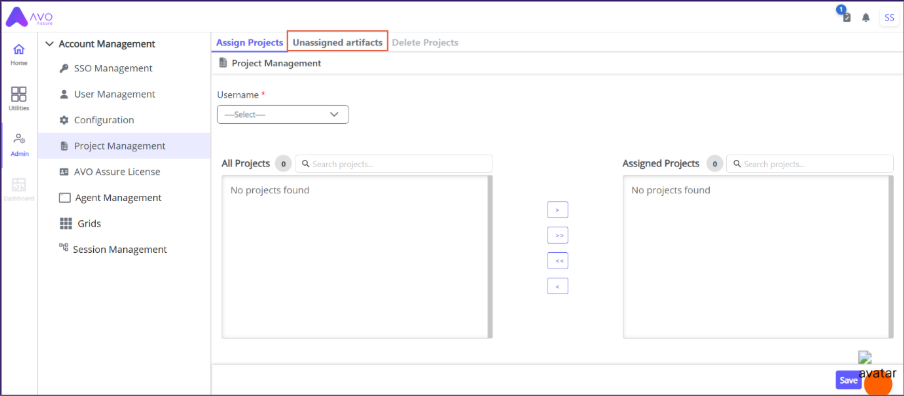
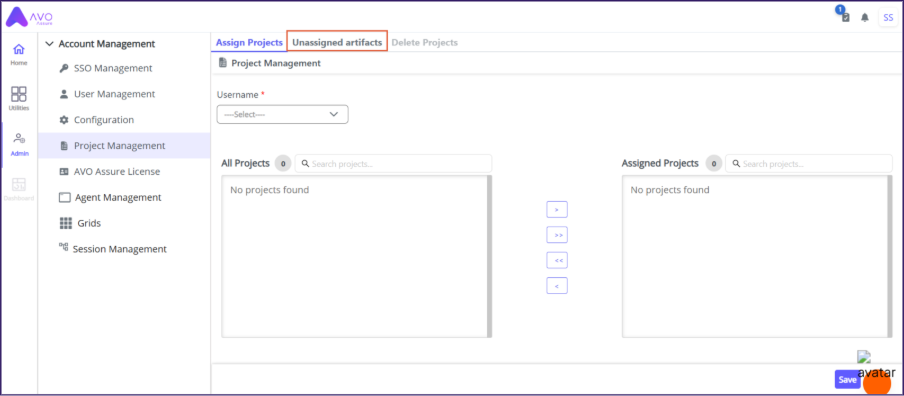
2. On **Admin** tab, select **Project Management**.
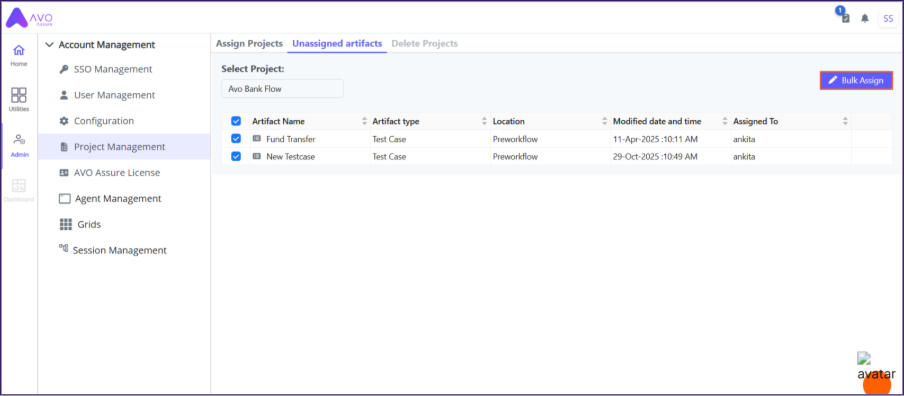
3. On the **Project Management** page, select **Unassigned artifacts** tab.
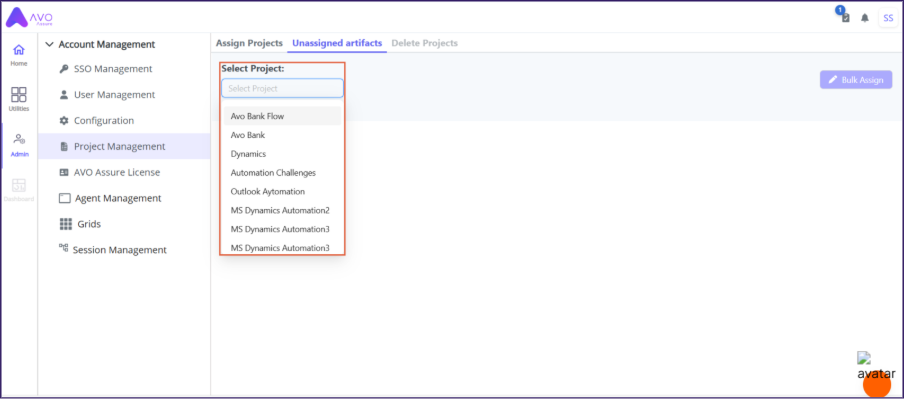
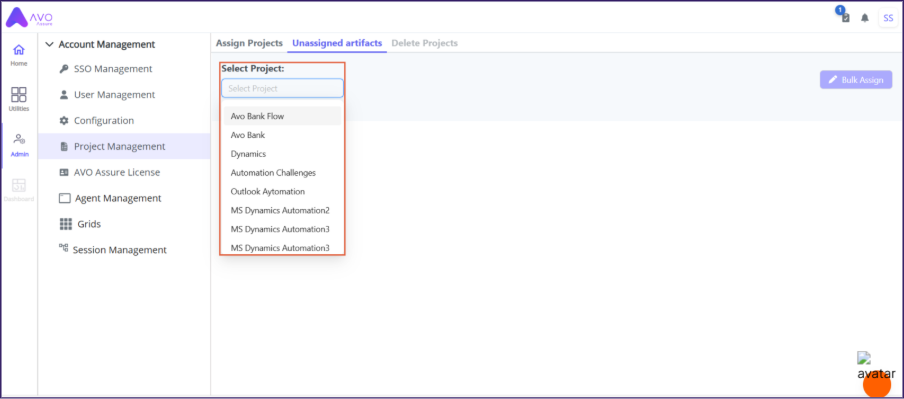
4. On **Unassigned artifacts** tab, from **Select Project** dropdown, select required project.
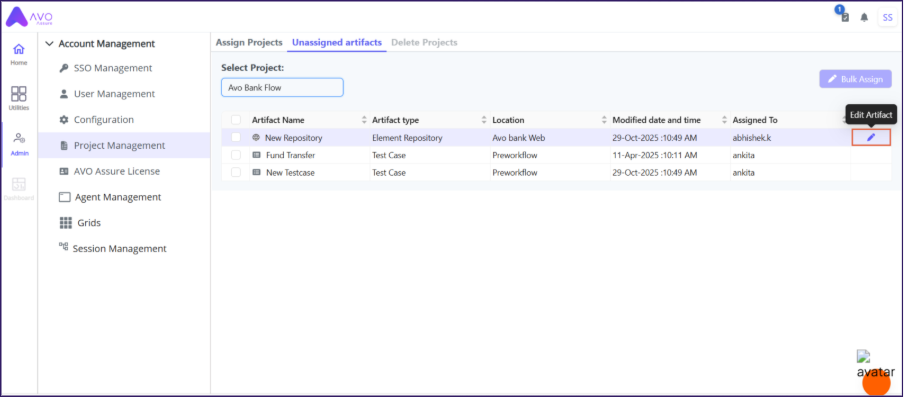
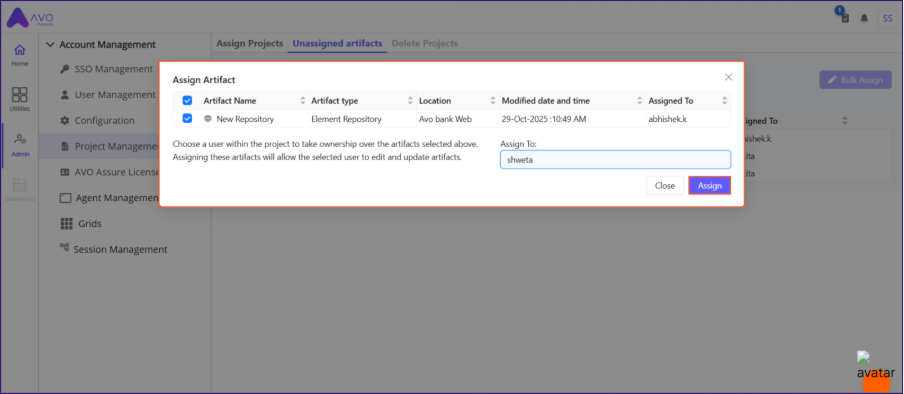
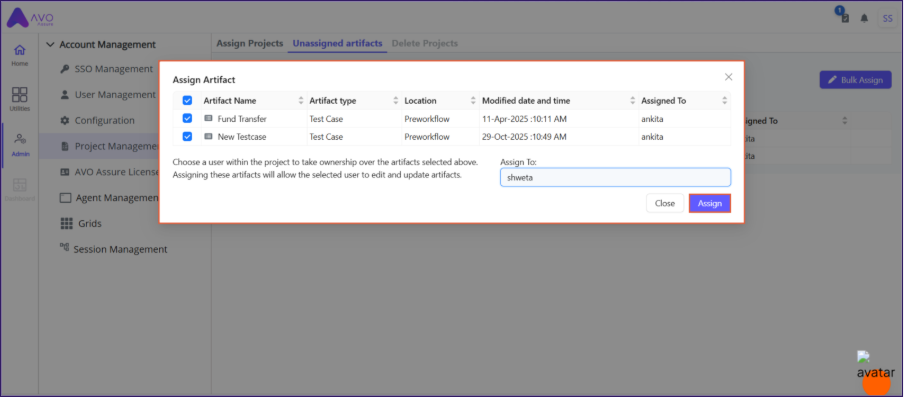
5. Hover over the artifact you want to assign and select the **Edit Artifact** icon. The **Assign Artifact** dialog opens.
6. In the **Assign To** drop-down list, select the user.
7. Select **Assign**. You get Artifacts Assigned Successfully success message.
{% hint style="info" %}
**Note**:
* **Close** button can be used to close Assign Artifact dialog.
* After you assign the artifact, it no longer appears on the **Unassigned Artifacts** tab.
* Hover over a value in the **Location** column to view the folder path.
{% endhint %}
Bulk Assignment
Bulk Assignment allows you to assign multiple artifacts at the same time. This helps you manage assignments more efficiently.
To assign multiple artifact, perform the following actions:
1. On the **Home** page, select **Admin** tab.
2. On **Admin** tab, select **Project Management** option.
3. On the **Project Management** page, select **Unassigned artifacts** tab.
4. In the **Select Project** drop-down list, select the required project.
5. Select artifact checkboxes and select **Bulk Assign**.
6. On **Assign Artifact** dialog, from **Assign To** dropdown, select the user.
7. Select **Assign** button. You get **Artifacts assigned successfully** success message.
{% hint style="info" %}
**Note**:
* **Close** button can be used to close Assign Artifact dialog.
* After you assign the artifact, it no longer appears on the **Unassigned Artifacts** tab.
* Hover over a value in the **Location** column to view the folder path.
{% endhint %}